Your Instagram account is usually connected with your Instagram Threads account. The notifications of Threads posts are also visible in your Instagram account, along with all the other notifications, and this may sometimes be annoying and disturbing. You are not the only one facing this issue, as the posts, content, and notifications of Threads usually appear on your Instagram posts and notifications. You are being annoyed by the cross-platform notifications; you can control them by either reducing or completely stopping the Threads posts and notifications on Instagram by making just a few changes to its settings.
In this article, we provide a guide to stop seeing Threads posts and notifications on Instagram so that you won’t be disturbed by the notifications and posts from two different platforms on one platform, and so that you get a clean interface in a simple and easy guide.
Why Threads Content Appears on Instagram
Threads is a part of Instagram and is connected with it. You may see the content and posts of your Threads account on Instagram, such as:
- Suggested content and posts of Threads on your Instagram feed
- You get notifications on Instagram to join Threads
- You get activity alerts, such as new posts on Threads by your Instagram followers
Instagram encourages you to link your Threads account with your Instagram account to increase engagement across platforms. It helps in improving the engagement and reach of your Threads account. You can turn it off so that you no longer see Threads content suggestions on Instagram.
What You Can Control
Thread post suggestions appear on your Instagram feed automatically, and it is not always possible to turn them off completely. However, you can reduce it by controlling the following:
- You can turn off Threads’ post notifications on Instagram
- You can manage what Threads content you want to be suggested on your Instagram feed
- You can manage the app preferences to make your user experience better
By controlling what type of suggested content and notifications you want on your Instagram, you can get the best user experience of using Instagram for viewing content such as posts, reels, and notifications.
Steps to Stop Threads Posts and Notifications on Instagram
It is simple and easy to control Threads’ posts, suggestions, and notifications on Instagram. If you don’t want to see the Threads posts and notifications on Instagram, you can stop them by following some simple steps using your mobile phone:
Step 1: Launch the Instagram app on your mobile and log in to your account
Step 2: Tap on your profile picture or profile icon in the bottom-right corner
Step 3: Tap on the three lines (hamburger icon) to see the menu in the top-right corner
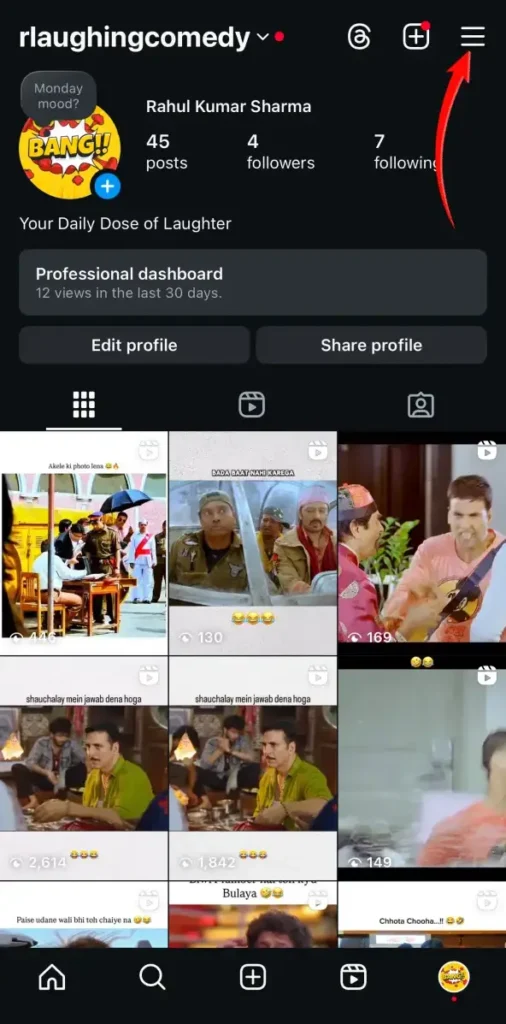
Step 4: Scroll down to Settings and Privacy and click on it
Step 5: Click on Notifications
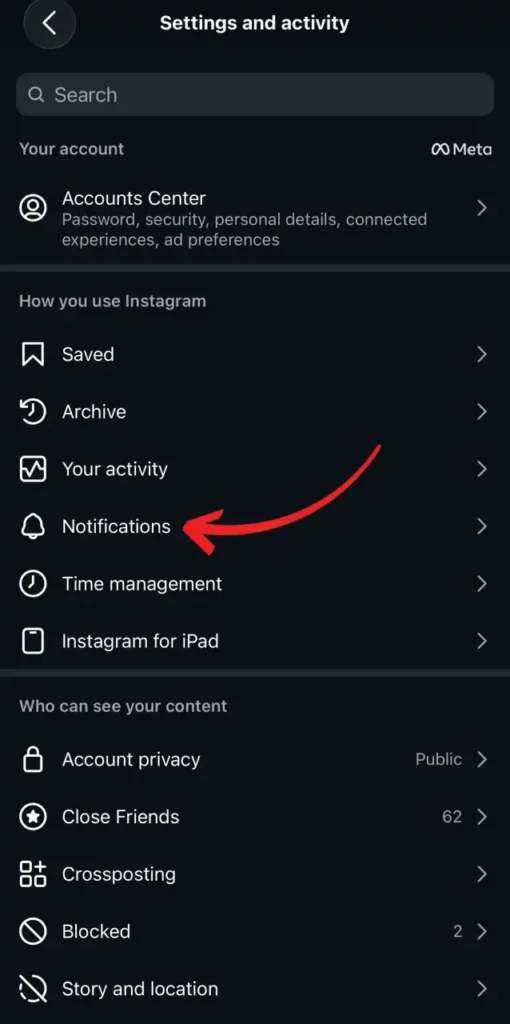
Step 6: Search for Threads or Suggestions under notifications
Step 7: Turn off or mute the notification settings
Step 7: Turn off Reminders and Product Announcements to see fewer alerts on Instagram
How to Reduce Threads Posts in Your Feed
If you are annoyed with the Threads posts on your Instagram feed, you can reduce them by following these steps:
- Scroll to the Threads posts suggested on your Instagram
- Tap on the three dots next to the suggested Threads post
- Tap on Not Interested
- Do the same process for the posts that you are not interested in
This would train the Instagram algorithm to show fewer Threads posts similar to the one you are not interested in seeing.
Additional Settings to Improve Your Feed
If you want a clean Instagram feed, you can change a few settings to improve your Instagram experience. Do the following to enjoy smooth Instagram usage:
- Mute the users and accounts that share Threads content frequently
- Turn on Snooze Suggested Posts on Instagram
- Limit Threads notifications on Instagram by turning them off
This would help you reduce unwanted posts and notifications across the platforms, Threads and Instagram.
What to Do If Notifications Still Appear
If you are still being annoyed by unwanted notifications of Threads posts and content on Instagram even after making all the changes, you should try the following troubleshooting to get it resolved.
- Log out of your account and log back in to your account
- Clear the app’s data and try logging in to your account
- Check for any updates for Instagram if available
- Review the settings once again to see that you have made the changes accordingly
Conclusion
If you want to stop seeing Threads posts and notifications on Instagram, you can get it done easily by following some simple steps. There are various ways in which you can reduce unwanted content and notifications of Threads on Instagram. You can mark the posts that you don’t want to see or any other similar posts of Threads suggested on Instagram by marking them as “Not Interested.” You can get a clean and improved Instagram experience by just making a few changes to the notification settings. These steps are easy and simple to follow, which will give you a clean and engaging Instagram feed.
1 thought on “How to Stop Seeing Threads Posts and Notifications on Instagram”