

Facebook is one of the most popular social media platforms where users spend their time posting and interacting with others’ posts. You may love posting photos or reels on your account at the same time, but don’t want the public or some friends to see them. Hiding your Facebook posts or limiting their visibility is the best way if you are looking to maintain your privacy and control who can view your content on Facebook. You can limit your post visibility from the public for specific posts or for everything to the public or friends on Facebook with Facebook’s built-in tool.
In this article, we provide how to hide all posts on Facebook from public or friends to limit people from seeing your posts, whether a specific post or all posts, along with a step-by-step process for the same.
Why Hide Your Posts on Facebook
There may be various reasons for you to consider hiding your Facebook posts from some users or friends on Facebook to manage your audience, and the reasons differ from person to person. However, the most common reasons why people look to hide their posts are:
- Hiding your Facebook posts helps you protect personal information from unknown users
- You can hide your older posts that you no longer want others to see by limiting access to them
- You can manage and control your audience on Facebook without deleting anything
- You can reduce public visibility to your posts by improving account security
Methods to Hide All Posts on Facebook from Friends
There are various methods with which you can hide your posts on Facebook from friends or other users. Facebook have the built-in feature to hide specific or all posts at once in Facebook to control who can see your Facebook content.
Hide All Future Posts From Public or Friends
If you don’t want the posts you share on Facebook in the future, then this method would help you. Follow these steps so that you don’t lose control over your account’s privacy for future posts:
Step 1: Open the Facebook app on your phone and log in to your account
Step 2: Tap on the profile icon or your profile picture in the top corner to open the menu
Step 3: Go to Settings under Settings & Privacy
Step 4: In the settings and privacy, scroll down to Audience and Visibility
Step 5: Tap on Posts and tap on Who can see your future posts?
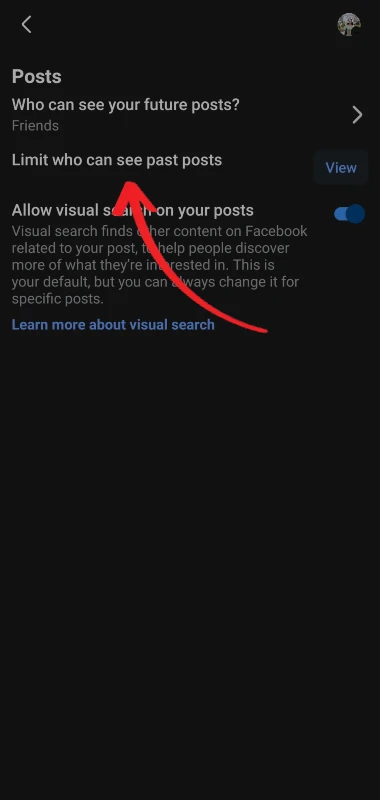
Step 6: Select Friends, Only Me, or Custom to control who can see your posts
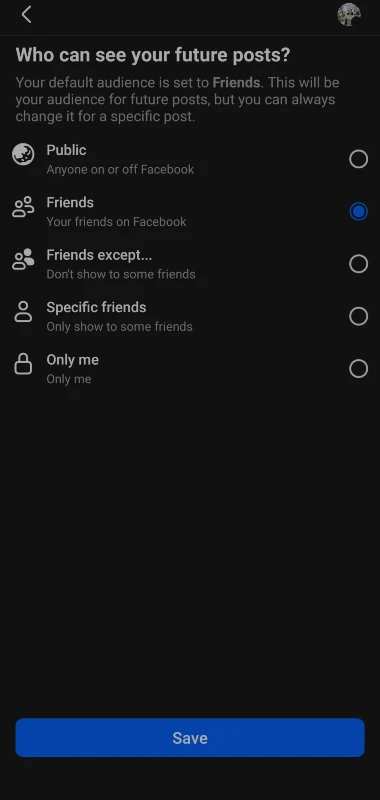
If you select the ” Only Me option, all future posts would be hidden from everyone, and if you select the ” Friends option, all your future posts would be hidden from everyone except your friends, and the custom option lets you choose who can see your posts and from whom they can be hidden.
Hide All Past Posts Using “Limit Past Posts”
If you are looking for an option with which you can change who can see your posts that have been posted in the past as public or the “Friends of Friends” option, this option would help you the most. Follow these steps to hide your past posts on Facebook:
Step 1: Open Facebook and go to Settings under the Settings & Privacy menu
Step 2: Scroll down to Audience and Visibility and tap on Posts
Step 3: Click on Limit who can see past posts
Step 4: Tap Limit Past Posts
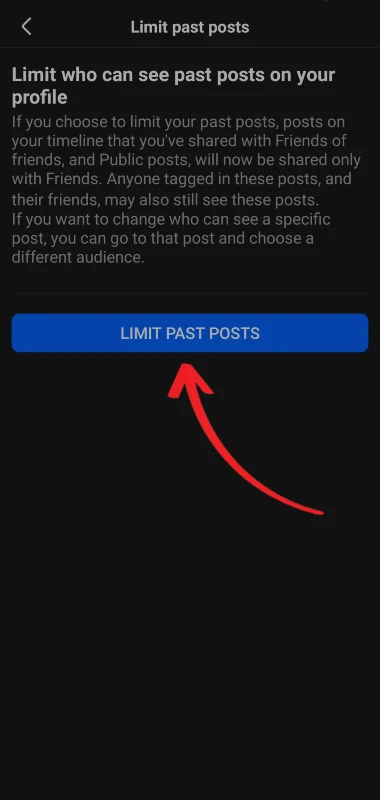
Step 5: This would be a permanent change, so you need to confirm that by tapping on Confirm
Step 6: All your past posts will now be visible only to your friends
Hide Specific Posts (If You Don’t Want to Hide Everything)
If you want to hide only specific posts while keeping all the other posts visible, then this method would help you. You can manually change the visibility option for your posts to hide individual posts from others. Follow the steps given below to hide:
Step 1: Log in to your account and go to your profile
Step 2: Find the post that you want to hide
Step 3: Tap on the three dots (⋯) icon on the right side of the post
Step 4: Tap on Edit audience and choose Only Me
This method works best if you want specific posts to be hidden from everyone. This becomes lengthy if there is more than one post, as you need to do that manually for all.
Hide All Posts From Friends by Changing Audience to “Only Me” (Manual Method)
You can hide all the posts on Facebook if you want to keep everything private and don’t want others to see your posts, but as stated earlier, you need to do that for past posts individually and for future posts with the built-in option on Facebook. Follow these steps to hide everything using the Only Me option.
Step 1: Log in to your account and go to your profile
Step 2: Scroll down and tap on Posts
Step 3: Open each post and tap on the three dots and select Edit Privacy
Step 4: Choose Only Me
If there are multiple posts, this would be a time-consuming one for you, as you need to do the same for all the posts manually.
Hide Tagged Posts From Your Profile
You may also want to hide the posts where you have been tagged by your friends or other users on Facebook. You have to do that separately through these steps:
Step 1: Open your profile and go to Settings under Settings & Privacy
Step 2: Scroll down to Profile and Tagging and tap on it.
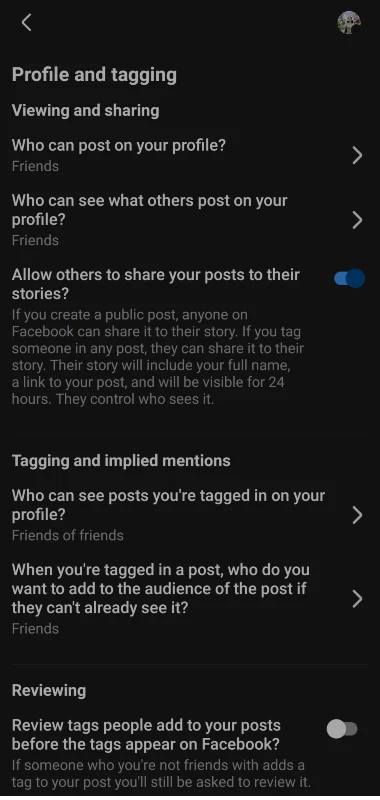
Step 3: Under Reviewing, enable Review posts you’re tagged in
Step 4: Change Who can see posts you’re tagged in on your profile? to Only Me
This would help you prevent the tagged posts from being visible on your profile or timeline.
Conclusion
You can easily hide your pasts, future, and tagged posts on Facebook in just a few clicks, as Facebook allows you to control your posts’ privacy. However, if you are looking to hide specific posts, you have to do that manually, and it may be a little time-consuming, but it would be helpful for your case and effective in maintaining your account privacy. You can either hide everything from everyone, let specific people see, or let your friends see, as per your preference for managing your content. You just need to make a few changes to your settings as discussed above, and you will be good to go.