

Instagram’s Vanish Mode is a privacy feature that allows its users to send messages that disappear once they are seen and the user leaves the chat. In other words, Vanish mode is a feature on Instagram that allows users to send temporary messages, photos, and videos to keep the conversation private without any backup of the texts and messages. If you are sharing a secret message, photo, or having a private conversation that you want to be deleted once it is seen by the reader, vanish mode is a very useful feature.
In this article, we provide the best and easiest ways to enable and disable Vanish Mode on Instagram so that you can send disappearing messages, along with a step-by-step process for the same.
Why Use Vanish Mode on Instagram
Vanish Mode is very helpful for sharing private messages and sensitive content that you don’t want to be stored in chat history. You need to understand why it is important for users to use the Vanish Mode feature. The various reasons why to use Vanish Mode are:
- Privacy: The messages sent while in Vanish Mode disappear automatically after being seen
- Control: Both users are notified about the Vanish Mode, and both must agree to send messages in Vanish Mode
- Security: Vanish Mode feature only works when users are connected and have both followed each other.
- Flexibility: Vanish Mode can be easily turned on or off anytime with a single click
How to Activate Vanish Mode on Instagram
It is not very difficult for users to activate vanish mode on Instagram to maintain the privacy of their messages on their Instagram account. Though there may not be a direct setting to enable vanish mode on Instagram, it is easy to get it done through the Instagram chat itself. There are two main ways to enable Vanish Mode on Instagram.
Activate Vanish Mode with a Swipe
Step 1: Open the Instagram app and log in to your account
Step 2: Go to Direct Messages (DMs) by tapping the chat icon
Step 3: Open a conversation with the person you want to chat with
Step 4: Swipe upward from the bottom of the screen and release
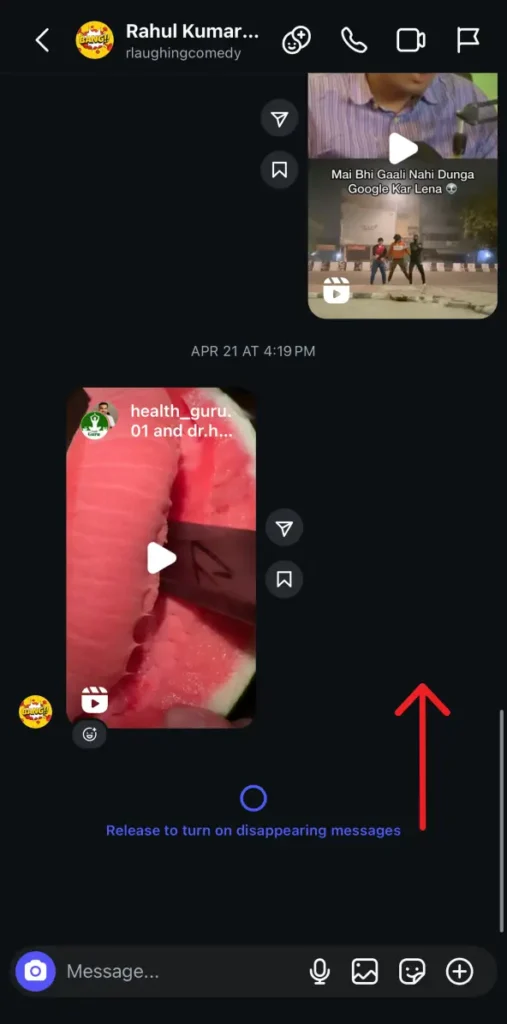
Step 5: You’ll see the screen turn darker, and a message saying “You’ve turned on Vanish Mode” will appear
Tip: Swipe up again to exit Vanish Mode any time.
Turn On Vanish Mode Through Chat Settings
Step 1: Open the Instagram conversation in your Direct Messages
Step 2: Tap the info icon (i) or the person’s name or at the top right
Step 3: You would see the Vanish Mode (Disappearing Messages) option, click on that
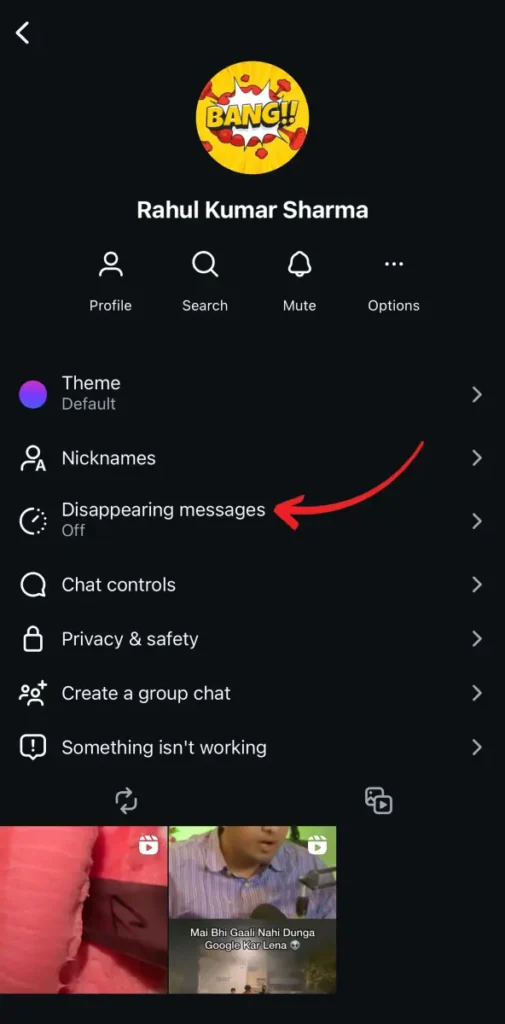
Step 4: Toggle it to On to enable disappearing messages and select the desired way for disappearing messages
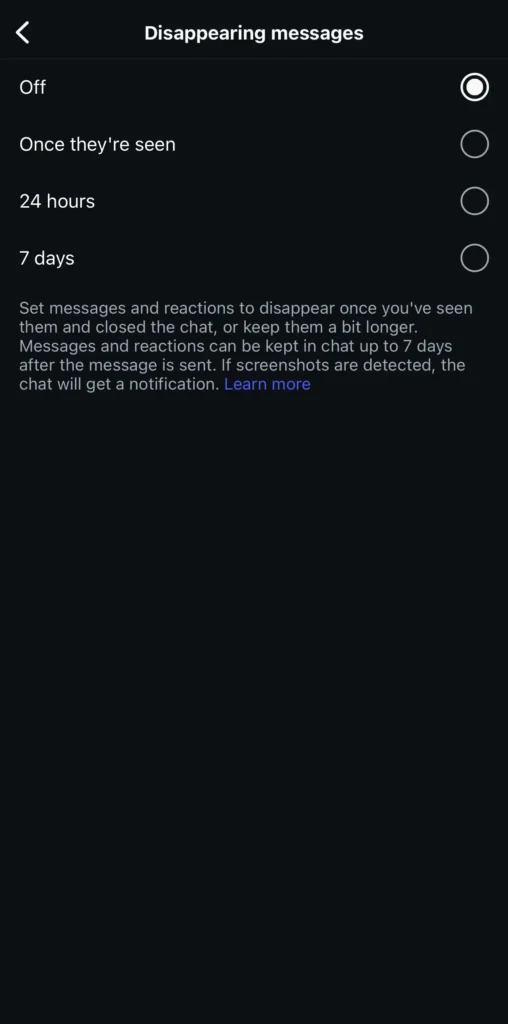
Step 5: Toggle it back to Off whenever you don’t want the vanish mode and want to return to normal chat
Tip: Both users of the chat would be notified when Vanish Mode is turned on or off.
How to Disable Vanish Mode on Instagram
You can turn on the vanish mode on Instagram using the two different methods mentioned above. However, if you no longer want the vanish mode on Instagram, you can easily turn it off with the steps mentioned below:
Step 1: Open the Instagram chat where Vanish Mode is active on your DMs
Step 2: Swipe upward from the bottom of the screen and release it OR go into the Chat Settings for the second method
Step 3: Toggle Vanish Mode to Off
Step 4: The screen will return to normal, and your chat history will function as usual
Tip: Your Instagram chat will return to normal once you’ve disabled the vanish mode on any Instagram chat.
Conclusion
Vanish Mode is a very useful feature for users to keep the conversation private and clean, by keeping the conversations meant to be stored for a longer period only. Vanish Mode or Disappearing messages can be enabled from different methods, and the results from both methods are the same. Vanish Mode only works with users whom you’ve followed or when both users are connected to make the conversation private and temporary. You can keep your chat on Instagram clean without any unnecessary texts, so that you can get access to your important texts easily when you need them.