Gmail is an integral part of a mobile phone as everything these days is linked to gmail directly or indirectly. You might have created your Gmail earlier for various purposes and may now be looking to change its username to make it look clean and match your name. People are confused about whether changing your Gmail username would lead to the loss of your emails, contacts, backed-up data, or other Google account data. Display name and username are two different things on Gmail; the display name is shown to people, while the username is something different.
In this article, we provide the steps to change your Gmail username without losing your account, so that you can access your Gmail without losing access to any of your Google services, along with the mail redirection from old username to the new one and a step-by-step process for the same.
First, Know What You’re Trying to Change
You need to be clear on what you want to change about your Gmail, either the Gmail username address or the display name. Gmail username is the actual address before @gmail.com and display name is the name shown while sending mails through Gmail.
You can change your display name easily via Google account settings. Google has now introduced a new feature that allows users to change their Gmail address or username without creating a new account.
Change the Name People See When You Send Emails
If you only want to change the display name when you send emails, you do not need to change your username as Google allows people to easily change your display name without the need to create a new account. You can change the name of your Gmail account by following the steps below:
Step 1: Open Gmail on your phone or computer and sign in to your account
Step 2: Click the gear icon (Settings) in the top-right corner and click on See all settings
Step 3: Click on the Accounts and Import tab from the available options
Step 4: Scroll and locate the Send mail as section, and click on Edit info next to your Gmail address
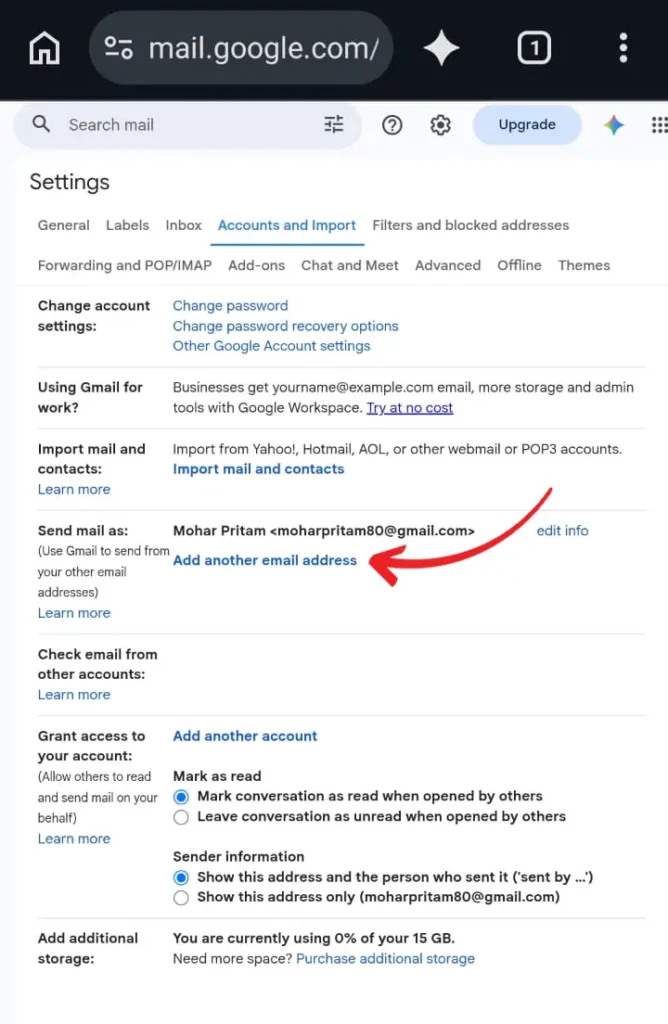
Step 5: Enter the new name you want people to see while they view your Gmails
Step 6: Click Save Changes to make the change effective
These would only change the name displayed to people when they read your emails, and your Gmail address or username remains the same.
Check Whether Your Gmail Address Can Be Changed
You might be confused about whether you can change your Gmail address or not. You can now change your Gmail address, as Google has introduced a new feature with an option to change your Gmail username without losing access to your previous emails and other associations with the previous Gmail address. You can change your Gmail username with these simple steps:
Step 1: Open your Google Account settings through Manage your Google Account on Google
Step 2: Go to the Personal info tab and click on Email
Step 3: Search for the Google Account email option in the settings
Step 4: Search for the option to change your Gmail address from the available settings
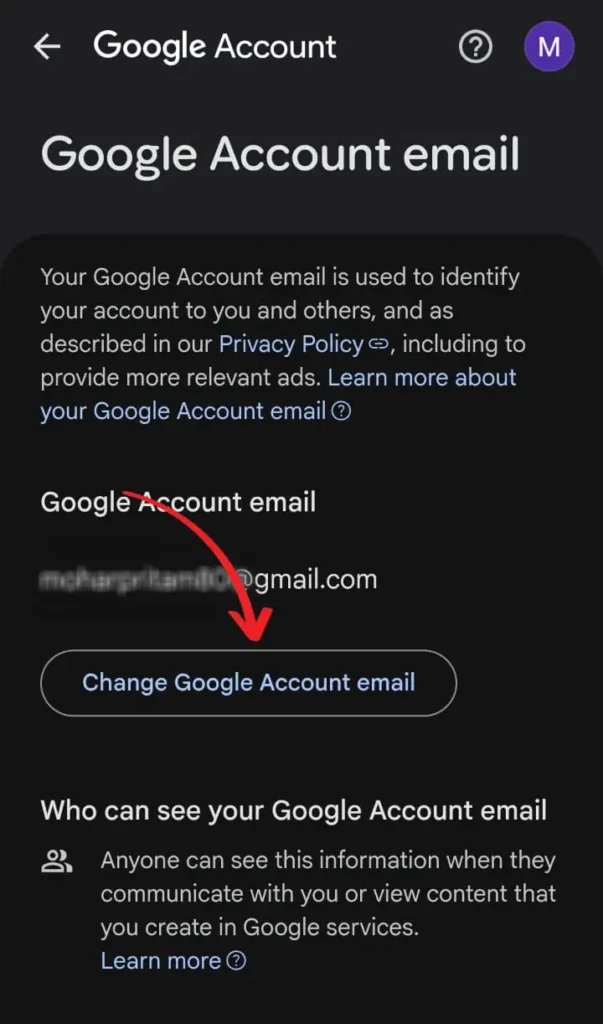
Step 5: Follow the instructions from Google to choose a new Gmail username that is available
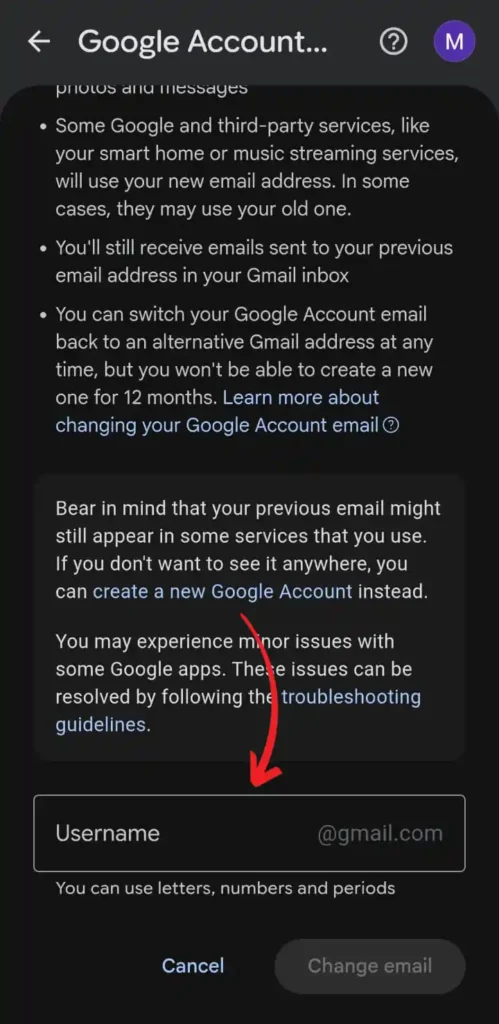
You can change your Gmail address only once, so make sure to choose a suitable Gmail username that is available. If your account doesn’t show the option to change your Gmail address, you need not worry about it, as you have various other options for the same.
Create a New Gmail Address Without Losing Your Old Account
If your account doesn’t have the option to change your Gmail address but you still want a Gmail account with your desired username, then you can create a new Gmail account with the username that you want. You can still keep your previous account to keep receiving all the emails and notifications as usual. You can create your new Gmail account with the following steps:
Step 1: Create a new Google account with the Gmail address that you want
Step 2: Sign in to your new Gmail account with the Gmail ID and password
Step 3: Do not delete or remove your old account and keep it active
Step 4: Transfer the important files, documents, emails, contacts, and other information from your old Gmail account to your new account
Step 5: Change and update your new email address on the important sites and websites where you are registered with your Gmail
Step 6: Update your colleagues, friends, and contacts about the updated new Gmail address
You must ensure that your old Gmail account is active and not deactivated or deleted so that you would not lose access to your important information on your Gmail. You can update and change the Gmail address on all important websites so that you can access them with your newly created Gmail account.
Keep Receiving Emails Sent to Your Old Address
If you are worried whether you would stop receiving emails to your newly updated Gmail address or the newly created account sent to your older account, then you need not worry about the same as all the emails sent to your older Gmail address are automatically directed to the newly changed Gmail address. However, if you have created a new Gmail account, then you must do the following to forward the emails to the newly created Gmail:
Step 1: Open Gmail on your phone or laptop and sign in to your old account
Step 2: Tap on three horizontal lines on top left corner
Step 2: Scroll down and click Settings and select See all settings
Step 3: Go to the Forwarding and POP/IMAP tab from the available settings
Step 4: Look for the Add a forwarding address option and open it
Step 5: Enter your new Gmail address where you want to receive the emails
Step 6: Complete the verification process on your new Gmail address
Step 7: Save the setting by clicking Enable forwarding
Do not immediately delete your old account or remove it from your device. Verify that you are receiving all the emails and services on your new Gmail account and can access the same with your new Gmail address.
Don’t Forget Your Google Account Data
You should not forget the account details of your old Gmail account because you have changed your Gmail username or have created a new account. Your old Gmail address might be connected to various services. Check the following items to review whether you have any important information linked to your old account:
Changing or creating an email address doesn’t automatically mean you should lose your existing Google data. Before making major changes, check the information connected to your account.
- Gmail emails and attachments
- Google Contacts
- Google Drive files
- Google Photos
- Google Calendar
- YouTube account information
- Important subscriptions and account logins
If you have only changed your Gmail username, all these items would be automatically linked to your new Gmail address; however, if you have created an entirely new account, then you need to manually transfer these items to your new account from the old one.
Update Your Email Address Everywhere
If you have just updated your Gmail address by changing its username, you need not worry as all their emails sent to your old Gmail would be forwarded automatically to your new Gmail address. However, if you have created a new Gmail account, you have to update your new Gmail ID on all websites and services where you have previously logged in with your old Gmail address. These are the things that you need to consider for updating your email address:
- Banking and payment services
- Government portals
- Social media accounts
- Shopping websites
- Work or school accounts
- Subscription services
- Password managers and recovery settings
Updating your Gmail after changing your Gmail username or creating an entirely new account helps yo prevent the loss of your account or services that use your old email address.
What Happens to Your Old Gmail Account?
You can still continue using your old Gmail account even after creating a new account. All the emails, services, and website logins are not automatically transferred to your new account; hence, you should keep using your old account until everything is fully transferred.
You should verify and confirm that all your important infomations are redirected and transferred to your new account before deleting or removing your old account. It is always advised that you keep the old account along with the old account for verification and confirmation of your information and data.
Conclusion
Changing your Gmail username and name are two different things. Changing your display name doesn’t affect your emails and website logins; it just changes the name displayed on your account or the name while sending emails. However, changing your username or creating a new account is entirely different, as it gives a completely new Gmail address to your account. The option to change your Gmail username is a new feature by Gmail and is available only once. If you want a username of your choice but without losing access to your previous Gmail, then changing the Gmail address is the safest option. However, if you do not want access to your old Gmail and want a completely new and clean account, then creating a new Gmail account is the best option for you. You must first make sure why you actually need a new Gmail address before proceeding with any of these options.