Are you using your smartphone smartly? Smartphones aim at making the life of an individual simple and easy. Unlocking your phone using gesture app shortcuts is one such feature provided by most of the smartphone brands in 2026. The gesture shortcut allows you to perform several functions on your mobile with just a simple gesture on the screen. You can use the built-in gesture feature of your smartphone or use a third-party app to create your custom gesture for a specific function. The third-party gesture shortcut apps allow you to open apps by drawing a gesture or simple motion on your phone. You can open apps, unlock your phone, and enable or disable a function on your phone with a simple gesture to make it efficient and effective using a mobile. This saves your time and effort for switching between apps and can flex among your friends with the special feature.
In this article, we provide the steps to unlock your phone quickly using gesture app shortcuts and open apps on your Android or iOS devices instantly with simple motions or gestures, along with a step-by-step process for the same.
Why Use Gesture App Shortcuts for Unlocking
The main reason for using gesture app shortcuts to unlock devices and open apps on a smartphone is that it makes it faster and easier to use your mobile. It helps you perform navigation between apps and screens on your mobile quickly and efficiently. Along with these, there are several other reasons to use gesture shortcuts on a smartphone:
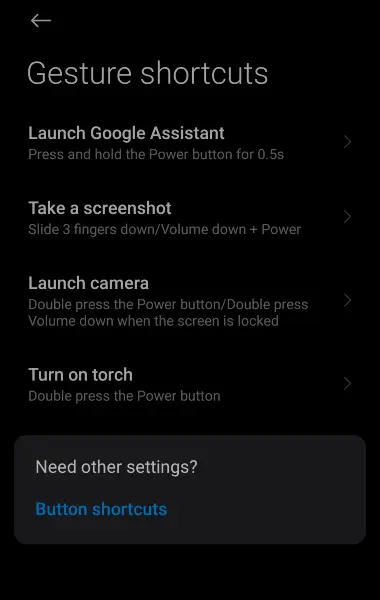
- You can access your phone faster with gestures.
- You can open apps, switch between apps, and unlock your device.
- You do not need a PIN, password, or pattern to unlock your mobile.
- You can customize motions for different actions, such as drawing W to open WhatsApp.
- You can use your phone using a single hand with the help of gestures
- You can use gestures to open apps or perform any action on both the lock screen and the screen.
What You Need Before Setting Up Gestures
Gesture shortcuts help you to use your phone smartly. You need to know various things before using gestures to perform any actions on your phone. If you do not use the gesture shortcuts smartly, it may backfire on you with several disadvantages. These are the things you need to consider before using gestures on your phone:
- Use the built-in gesture feature on your Android or iOS.
- Always use a trusted gesture app so that your information is not manipulated.
- Use a simple gesture that is easy to remember.
- Assign the gesture according to the actions to perform, such as drawing F to turn on the flashlight, drawing I to open Instagram, etc.
- Use a biometric lock on your phone along with a gesture lock for better privacy.
- Lock apps on your mobile using gestures or motions.
If you are an iPhone user, use the shortcut app on your device to perform actions for all types of functions, such as opening apps, unlocking your device, using functions, etc. iPhone limits its users to using an external app for unlocking the mobile due to privacy and security concerns.
Steps to Unlock Your Phone Using Gesture App Shortcuts
You can use the gesture app shortcuts to unlock your phone and open apps on your phone. The steps to enable this feature are simple and easy. Follow these steps to customize your gesture shortcuts on your mobile:
Step 1: Search for a trusted gesture shortcut app on your phone
Step 2: Install the app with good reviews from the Play Store or App Store
Step 3: Open the app and grant the necessary permissions
Step 4: Launch the app and grant the required permissions
Step 5: Tap on Add a new gesture under gesture control shortcut
Step 6: Draw a gesture that you want to assign for any action
Step 7: Assign the gesture to perform the action of your choice (open apps or unlock mobile)
Step 8: Review and save the gesture shortcut on your device
Popular Gesture Types You Can Use
The smartphone supports different types of gestures to create a shortcut for performing actions. These are the popular gestures that you should try to use on your mobile:
- Swipe gestures (up, down, left, right)
- Drawn patterns (letters or symbols)
- Double-tap or triple-tap actions
- Edge swipes
- Screen-off gestures
You can use your mobile and simple USB devices to make your TV a smart Android TV.
Common Problems and How to Fix Them
As every coin has two sides, using a gesture shortcut app also causes problems if not used properly. The common problems that you face using motions and gestures are:
- Any user can draw the gesture to open apps or unlock your device
- The gesture of external apps may collide with the built-in gesture of the mobile phone
- Security issues and privacy issues with your phone
Although you may face problems using gesture shortcuts, you can resolve them with these tips:
- Always back up the gesture with a strong phone lock
- Enable biometric lock so that other users won’t be able to unlock it easily
- Lock your gesture app settings with a password
- Use a simple gesture or motion that you won’t forget
- Avoid sharing gesture control with other users
Conclusion
Gesture shortcuts focus on reducing movement for navigating between screens. The gesture shortcut apps helps uses to perform functions such as opening apps with a simple gesture even from the lock screen. It also lets you unlock your device by drawing the gesture on your mobile lock screen. You can customize the gesture based on your preference such that you get the best performance for your phone. However, you should not completely rely on this to unlock your device, as this may lead to security concerns. You can use this feature to flex among your friends and be cool.
1 thought on “How to Unlock Your Phone Quickly Using Gesture App Shortcuts”